Toolbox talks are only effective when they’re consistently documented and clearly communicated. A well-structured format in Word cuts through the noise—turning vague safety reminders into actionable, trackable sessions. Yet most teams still rely on handwritten notes or disorganized documents that vanish after the meeting ends.
The solution? A standardized toolbox talk format in Word that’s easy to edit, share, and archive. This isn’t about rigid corporate templates. It’s about practical structure—consistent headers, clear action items, and accountability—without losing the human touch that makes safety conversations stick.
Below, we break down the essential components, provide real-world formatting examples, and highlight tools that make creating and managing these documents effortless.
Why Use a Word-Based Toolbox Talk Format?
Word remains the default document editor across industries—especially in construction, manufacturing, and field services. Unlike cloud-only platforms, Word files are accessible offline, require no special software, and integrate seamlessly with existing workflows.
A properly formatted Word document enables:
- Standardization – Every talk follows the same professional layout.
- Trackability – Version control and date-stamped edits make audits easier.
- Portability – Share via email, print on-site, or save to shared drives.
- Customization – Add company logos, site-specific hazards, or regulatory references.
Most importantly, a Word-based format ensures that even if your team lacks access to advanced safety software, you’re still documenting risks and responses effectively.
Core Elements of an Effective Toolbox Talk Template
A strong toolbox talk format in Word isn’t just a blank page with a title. It should guide the facilitator through key points while capturing critical data. Here’s what every template should include:
#### 1. Header Section - Company name and logo
- Date, time, and location
- Facilitator name and role
- Crew or team name/number
Place this at the top in a clean, bold layout. Use a table with invisible borders to align elements neatly without disrupting readability.
#### 2. Topic and Hazard Focus Clearly state the safety topic (e.g., “Working at Heights,” “Lockout/Tagout Procedures”). Follow with a brief description of the hazard—no more than two sentences.
Example: Topic: Fall Protection on Roof Edges Hazard: Unprotected leading edges during roofing installation increase fall risk, especially in high-wind conditions.
#### 3. Discussion Points Break down the talk into 3–5 key discussion items. Use bullet points for clarity. These should answer: - What can go wrong? - What controls are in place? - What’s each worker’s responsibility?
Avoid long paragraphs. Use short, direct language.
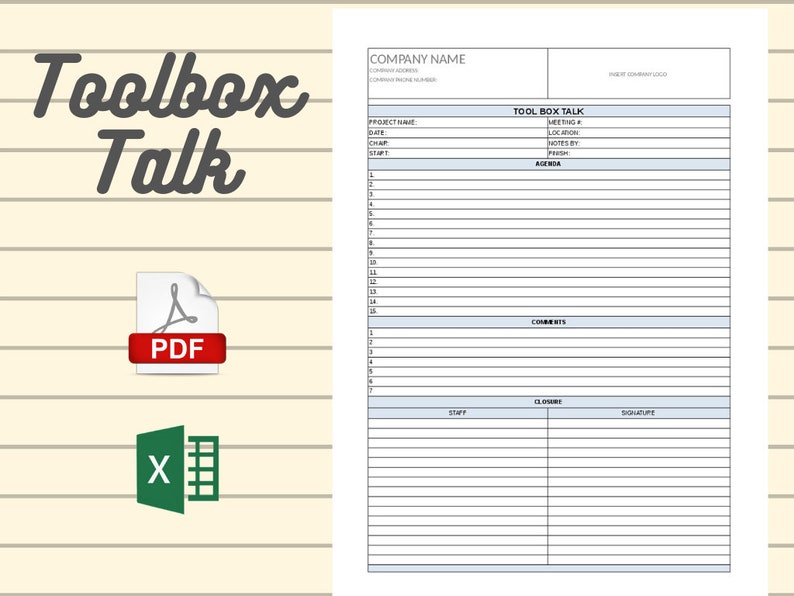
#### 4. Attendee Sign-Off Include a table with columns for: - Name - Signature (printed or handwritten) - Employee ID (optional) - Date
This serves as legal proof of attendance and understanding. Always keep signed copies on file for at least one year.
#### 5. Action Items and Follow-Up List any required follow-up steps: - Equipment repairs - Training referrals - Supervisor notifications
Assign ownership and deadlines to ensure accountability.
#### 6. Photo or Diagram Space (Optional) For visual reinforcement, leave room to attach or paste an image—such as a photo of the hazard zone or a PPE checklist.
Real-World Example: Construction Toolbox Talk in Word
Imagine your crew starts a new phase involving trenching. Here’s how your Word document might be structured:
Header Company: Summit Builders Inc. Toolbox Talk – Trench Safety Date: April 5, 2025 | Time: 6:45 AM | Location: Site B, Excavation Zone 3 Facilitator: James Reed, Safety Supervisor Team: Earthmoving Crew #2
Topic: Cave-In Prevention in Trenches Over 4 Feet Deep Hazard: Soil collapse in unprotected trenches can be fatal within seconds.
Discussion Points: ✔ All trenches deeper than 4 feet must have shoring, sloping, or trench boxes ✔ Never enter a trench without a spotter and emergency retrieval plan ✔ Inspect trench walls daily and after rain or vibration ✔ Atmospheric testing required if depth exceeds 5 feet in confined areas ✔ Emergency ladder must be within 25 feet of all workers
Action Items: - Procure additional trench shields by April 7 – Owner: James Reed - Schedule confined space refresher – Owner: HR, Deadline: April 10
| Attendee Signatures | |||
|---|---|---|---|
| ------------------- | ------------------- | ------- | ------------ |
| Maria Lopez | __________ | 1082 | 04/05/2025 |
| David Kim | __________ | 1095 | 04/05/2025 |
| ... | ... | ... | ... |
This format takes less than 10 minutes to complete but creates a permanent, professional record.
Common Mistakes to Avoid in Word Templates
Even experienced safety coordinators make avoidable errors. Watch for these:
- Overloading text – Word isn’t PowerPoint. Stick to key points, not full scripts.
- Missing metadata – Forgetting date, location, or facilitator invalidates documentation.
- Using complex formatting – Avoid columns, text boxes, or watermarks that break when printed.
- Failing to update – Reuse templates, but always revise topic, hazard, and attendees.
- No version control – Save files with dates: “ToolboxTalk_TrenchSafety_2025-04-05.docx”
Also, never use password protection or restrictive editing modes—these block field access and slow adoption.
Top 5 Word-Compatible Toolbox Talk Tools
While Word is powerful on its own, pairing it with the right tools streamlines creation and compliance. Here are five practical options:
| Tool | Key Feature | Word Integration | Best For |
|---|---|---|---|
| SafetyCulture (iAuditor) | Mobile-first toolbox talks with export to Word/PDF | Export as .docx or customize templates offline | Field teams needing digital capture |
| ClickUp | Docs with real-time collaboration, task assignments | Export templates to Word; sync action items | Teams using project management tools |
| Template.net | Pre-built, editable Word templates for safety topics | Direct .docx download | Quick setup with no design work |
| Microsoft Office Template Gallery | Free, official Word templates | Native integration | Companies standardizing across Office |
| SafetyTek | Industry-specific templates (construction, oil & gas) | Downloadable Word formats with OSHA references | High-risk sectors needing compliance |
Choose based on your team’s tech access and documentation volume. For most, a blend of a pre-made Word template and simple cloud backup (like OneDrive) is ideal.
How to Customize Your Template for Maximum Impact
A generic template fails when it doesn’t reflect real site conditions. Customize yours with:
- Site-specific hazards – Add a “Location Notes” section describing recent incidents or unique risks.
- Multilingual support – For diverse crews, include a translated version on the second page.
- PPE checklist – Embed a small table reminding workers what gear is required.
- QR code – Link to a video demo or safety manual using a printed QR code in the margin.
Also, save your master template as a .dotx file—this creates a Word template that won’t overwrite itself when edited.
Ensuring Compliance and Audit Readiness
OSHA and other regulators don’t require a specific format—but they do expect proof of regular safety talks. A well-structured Word document meets these standards when it includes:
- Topic and date
- Attendee list with signatures
- Clear hazard description
- Controls discussed
- Documentation retention (minimum 1 year)
Store files in a consistent folder structure: Safety Docs / 2025 / 04 April / Toolbox Talks /
Use file names that make searches easy: TT_LockoutTagout_MainPlant_2025-04-03.docx
During audits, inspectors look for patterns—frequency, relevance, and follow-up. A clean Word archive demonstrates proactive safety culture better than any flashy app.
Final Tips for Sustaining Quality Documentation
The best template fails without discipline. Build habits that make toolbox talks a seamless part of the workday:
- Schedule in advance – Plan weekly topics every Friday.
- Assign rotating facilitators – Empower team leads to run talks.
- Review past talks monthly – Identify recurring issues.
- Print and post key topics – Reinforce messages on site boards.
- Digitally back up Word files – Use cloud sync or external drives.
A toolbox talk isn’t paperwork—it’s prevention. The right format in Word turns that principle into practice, every single day.
Start with a simple, clean template. Refine it with real feedback. And never underestimate the power of a document that’s both professional and practical.
Use these guidelines to build a system that doesn’t just check boxes—it protects people.
FAQ
What should you look for in Toolbox Talk Format in Word: Templates That Actually Work? Focus on relevance, practical value, and how well the solution matches real user intent.
Is Toolbox Talk Format in Word: Templates That Actually Work suitable for beginners? That depends on the workflow, but a clear step-by-step approach usually makes it easier to start.
How do you compare options around Toolbox Talk Format in Word: Templates That Actually Work? Compare features, trust signals, limitations, pricing, and ease of implementation.
What mistakes should you avoid? Avoid generic choices, weak validation, and decisions based only on marketing claims.
What is the next best step? Shortlist the most relevant options, validate them quickly, and refine from real-world results.